Plugins
For dropdowns, tree selects and date pickers, the most common UI-automation pitfall is "clicked, but nothing got selected". The plugin system solves this with semantic actions: precise per-component-library operations, verified in-page after each action.
Plugins tab (built-in plugins & try-run) → Presets tab (orchestration & project linking)
Plugins tab
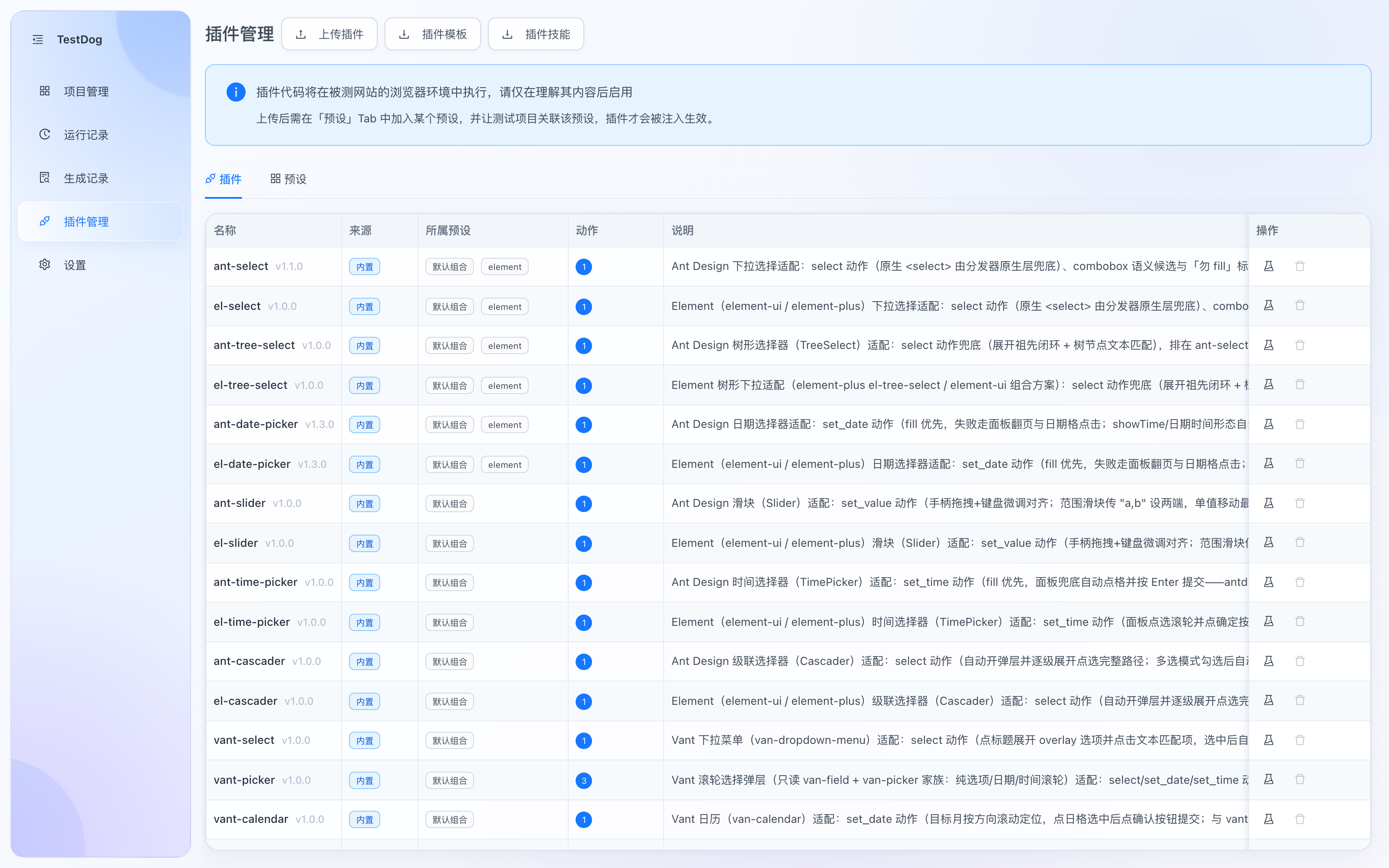
Plugins: Upload, Plugin Template, Plugin Skill; list shows source, preset membership, actions
Toolbar entries:
| Button | Description |
|---|---|
| Upload | Upload a custom plugin (.js single file or .zip bundle, single file ≤ 512KB) |
| Plugin Template | Download the plugin dev template (zip): sample component, skeleton plugin and offline acceptance harness — follow its README to walk the full flow |
| Plugin Skill | Download the tt-plugin-from-source skill (zip): drop into the tested project's .claude/skills/ and coding agents scan the source to auto-generate plugins |
Columns: Name (with version) / Source (builtin, uploaded) / Preset (e.g. "Default set", "element"; unassigned plugins show a "not injected" hint) / Actions / Description.
Actions column: a badge with the action count; hover to preview the action list (name + doc). Newly uploaded plugins show "written back after try-run" until the first try-run.
Row actions:
| Button | Purpose |
|---|---|
| 🧪 Try run | Runs the plugin once on a page you specify: reports detect hits, candidate count, and writes the action list back to the Actions column. Any reachable page works — the target component doesn't need to be present |
| ⬆️ Re-upload | Update a custom plugin's source (uploaded plugins only; preset membership stays, action list is written back from the new source at the next try-run) |
| 🗑 Delete | Delete the plugin (built-in plugins cannot be deleted) |
Security
Plugin code executes in the browser environment of the site under test. Only enable plugins whose content you understand.
Built-in plugins
Built-in plugins adapt each component variant precisely and work out of the box:
| Component | Ant Design | Element (element-ui / element-plus) | Vant | MUI |
|---|---|---|---|---|
| Select | ✅ | ✅ | ✅ | ✅ |
| Tree select | ✅ | ✅ | — | — |
| Date picker | ✅ | ✅ | ✅ (calendar/wheel) | — |
| Time picker | ✅ | ✅ | — | — |
| Slider | ✅ | ✅ | ✅ | ✅ |
| Cascader | ✅ | ✅ | — | — |
Try run
A plugin's action list can only be discovered once registered in a page. Click Try run in the actions column:
- Any reachable page URL works — the target component doesn't need to be present;
- After the run, the action list (detect hits, candidate count, actions) is written back automatically.
Presets tab
A preset is an execution group deciding which plugins are injected into the browser during generation and replay:
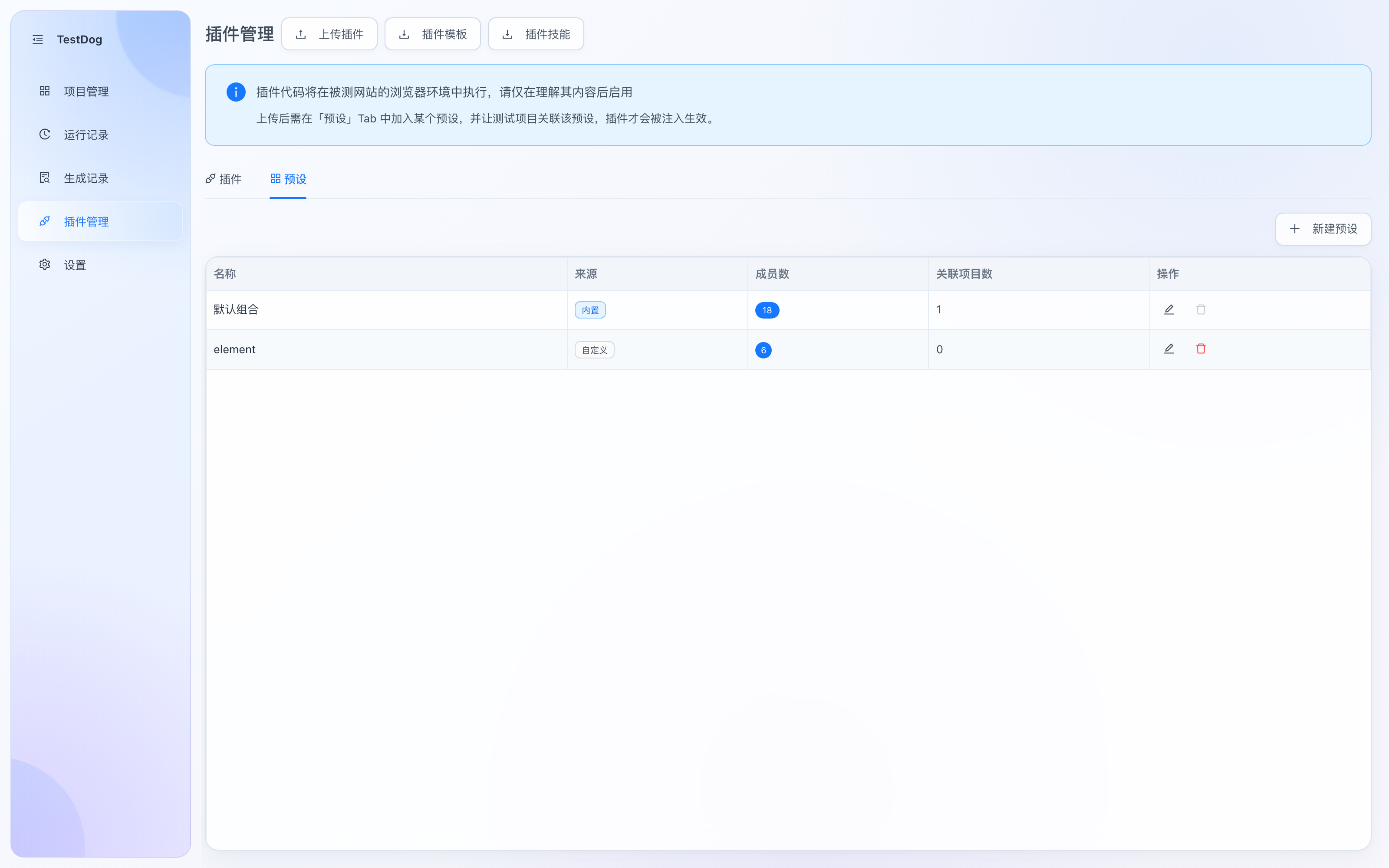
Presets: Default set (18 builtin members), element (custom)
- Member ordering: drag rows when editing a preset — higher numbers mean higher priority and earlier injection; newly added plugins get the highest priority automatically.
- Linked projects: link test projects when editing the preset; only projects linked to the preset get its plugins injected.
Row actions:
| Button | Purpose |
|---|---|
| ✏️ Edit | Open the preset editor: rename, add/remove members with drag ordering, link projects |
| 🗑 Delete | Delete the preset (the builtin "Default set" preset cannot be edited/deleted) |
Custom plugins
For in-house components or uncovered library variants, upload your own plugins:
- Format: a single
.jsfile, or a.zipbundle (manifest.json+ entry file). - Two steps to activate: upload, add it to a preset on the Presets tab, then link that preset to the test project.
- After uploading, run Try run once so the action list is written back from the new source.
Want to write one?
The full development guide (four-slot API, tri-state protocol, the pw bridge, the offline acceptance harness, generating plugins with coding agents) lives at Plugin Development.
How it works
- Detect: the plugin injected into the page under test probes for components it supports.
- Semantic actions: once matched, it exposes an action vocabulary (e.g. "select option") used by generation and replay instead of raw click/fill.
- Tri-state protocol: every action returns success / failure / not-matched — nothing ambiguous.
- In-page post-verification: after each action the page itself is checked to confirm the result really happened, blocking false successes.