
Projects
Projects is the main entry of TestDog: manage projects, test cases and script versions. AI generation, manual recording and import/export all start here.
Projects → Cases → Case detail (script versions & steps)
Project list
The first screen of the Projects menu. The toolbar offers three entries:
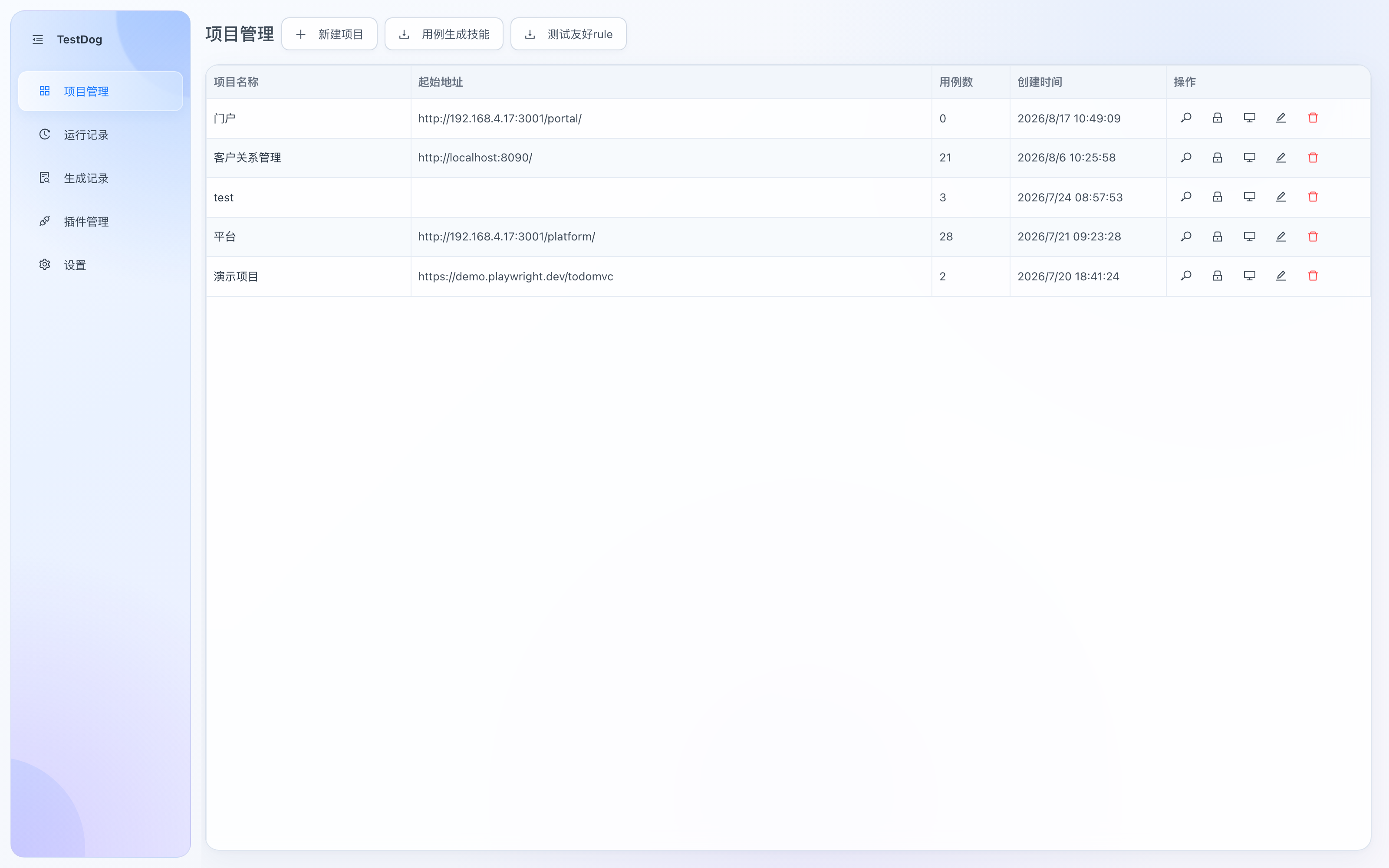
Project list: New Project, Testcase Skill, Test-Friendly Rule
| Element | Description |
|---|---|
| New Project | Set the project name and start URL (the address under test; generation/recording/replay open it by default) |
| Testcase Skill | Download the generate-testcase skill (zip) so coding agents like Claude Code can generate importable cases |
| Test-Friendly Rule | Download coding rules that guide developers to add stable data-testid markers |
| Columns | Project name / start URL / case count / created at |
Row actions (clicking anywhere on the row opens the case list):
| Button | Purpose |
|---|---|
| 🔑 Env vars | Manage project environment variables, referenced as {{key}} in scripts/assertions and injected at runtime. See Test Data & Login |
| 🔒 Login config | Manage the project's login configs: record a login state once, reused by generation and replay. See Test Data & Login |
| 🖥 Viewport | Browser viewport for recording/replay of this project (default 1920×1080; mobile pages can use 390×844 etc.) |
| ✏️ Edit | Change the project name and start URL |
| 🗑 Delete | Delete the project and all of its cases (with confirmation) |
Case list
Click a project to enter its case list:
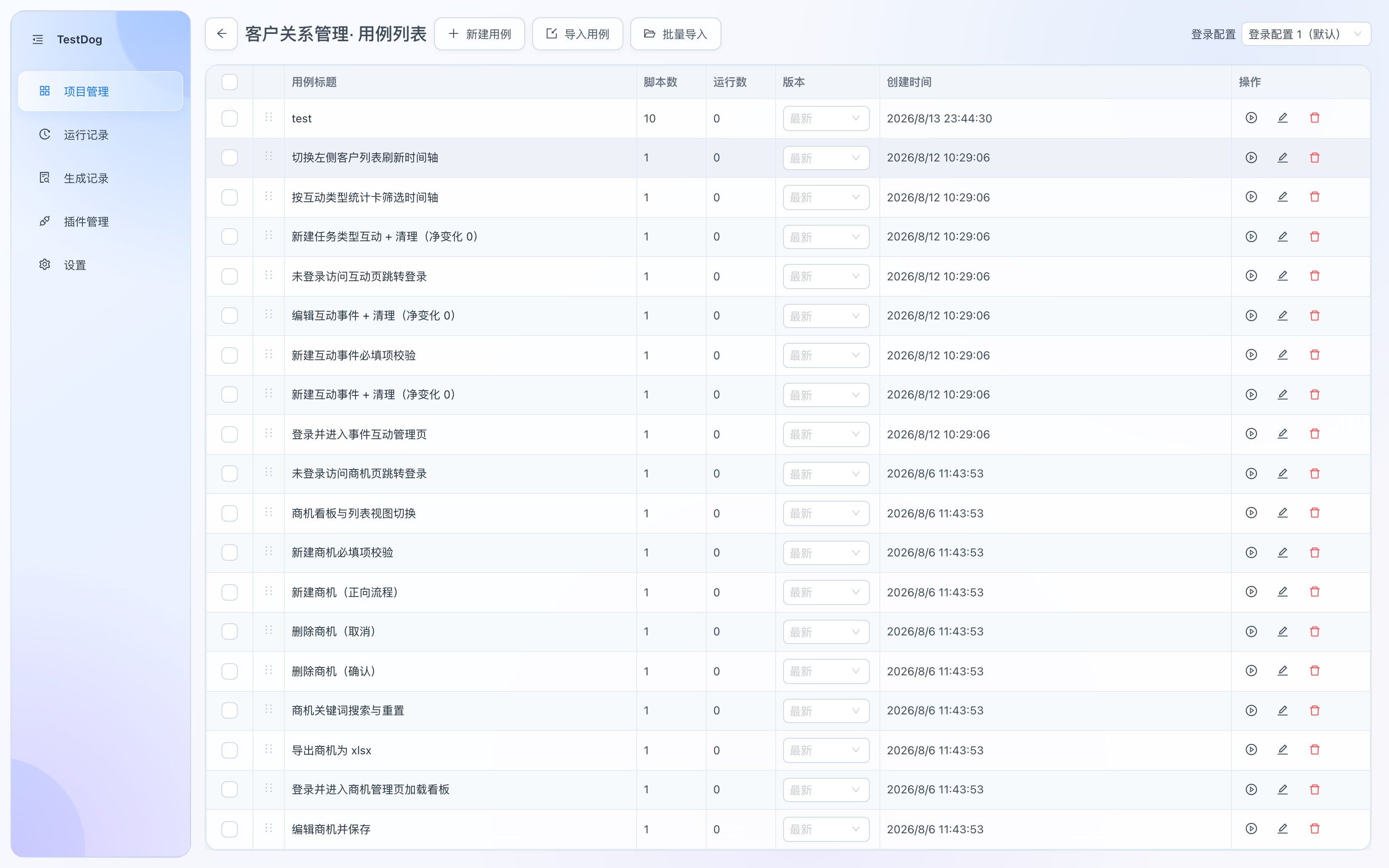
Case list: New Case, Import Case, Batch Import; the project's default login config on the top right
- New Case: fill in the title and description.
- Import Case / Batch Import: import
.testcasefiles (see .testcase files). - Login config (top right): the project-level default login state, reused by generation and replay.
- Version column: pick the case's default script version; "latest" always uses the newest. Bulk regression runs the default version directly.
Row actions (clicking anywhere on the row opens the case detail):
| Button | Purpose |
|---|---|
| ▶️ Run | Replay this case directly (default script version) with a live progress dialog showing per-step results |
| ✏️ Edit | Change the case title and description |
| 🗑 Delete | Delete the case (with its scripts and run history) |
Batch actions (toolbar once cases are checked): Batch Run (replays selected cases one by one with a result summary), Batch Export (export selected cases as .testcase files), Batch Delete; the Version column also supports batch-setting the default version.
Case detail
Click a case to open the detail page — the main workspace for scripts:
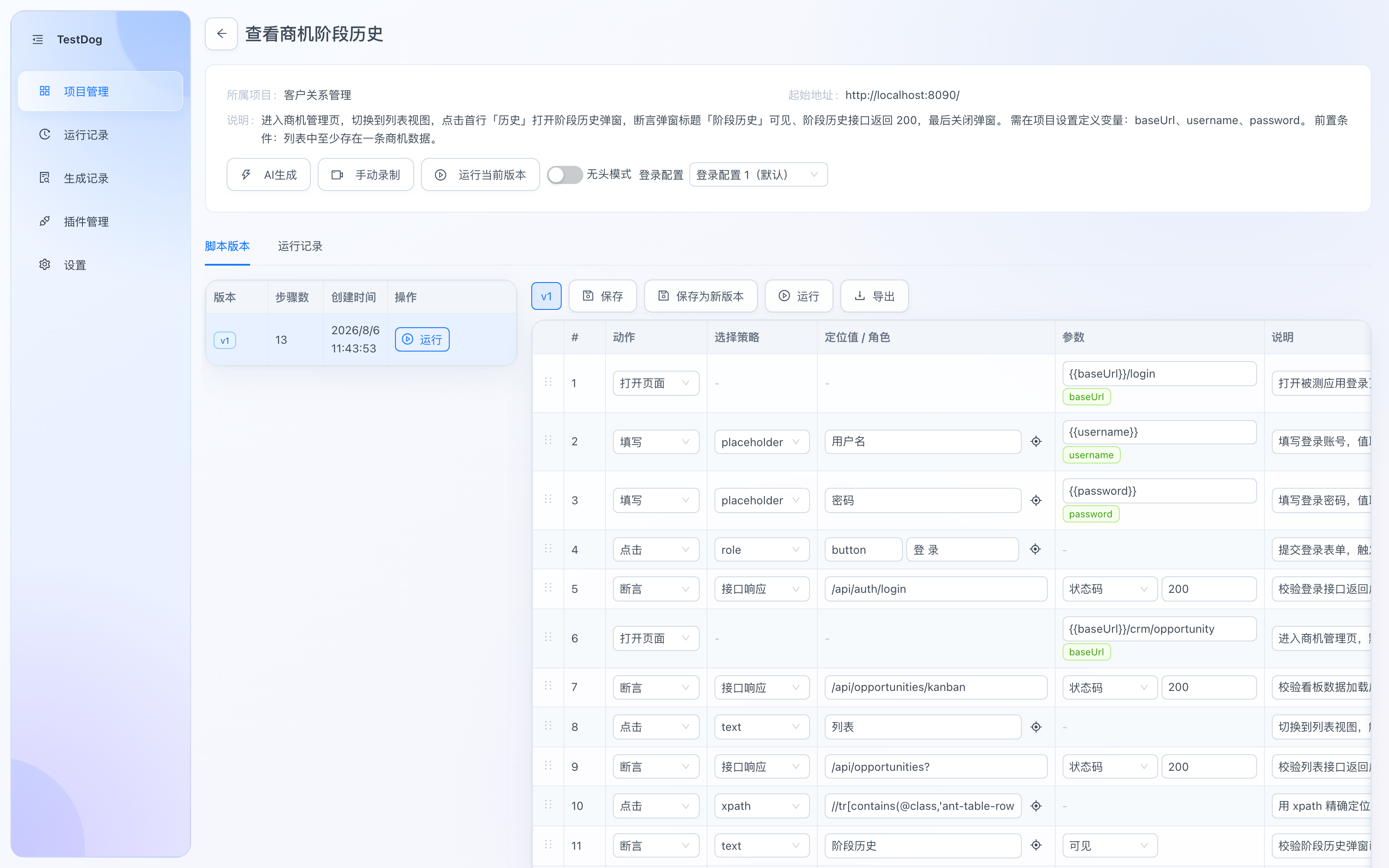
Case detail: action toolbar + script versions (left) and step table (right)
| Block | Description |
|---|---|
| AI Generate | Open the generation page and create a script from natural language (see AI generation) |
| Record | Open the recording page and capture browser actions as steps (see Manual recording) |
| Run Current Version | Replays the script version currently selected in the left list (see Replay) |
| Headless toggle | When on, replay runs silently without a browser window (good for batch runs); off by default so you can watch the browser work |
| Login config | The login state for this run; if unset, the run proceeds logged-out (noted in the run log) |
| Script Versions tab | Version list (v1…vN) on the left, step table on the right; Save / Save as New Version / Run / Export |
| Step table | Each step editable: action, locator strategy, locator value/role, params, description; add steps and reorder |
| Run Records tab | Historical runs of this case with per-step results |
Next steps
- AI generation — turn natural language into a script
- Manual recording — turn browser actions into steps
- Replay — assertions, self-healing and result export